2016年1月28日 星期四

dell power edge to cisco 3750 etherchannel

http://www.md3v.com/redundant-etherchannel-between-a-cisco-switch-and-a-dell-poweredge-server


26NOV/09Off

Problem: My production Dell PowerEdge file server has a single Broadcom Gigabit connection to a Cisco Catalyst 3750 switch on the internal network. I'm seeing average through put of around 100 MB/sec (~800 mbit) and am concerned about link saturation and performance bottlenecks. How can I increase the bandwidth between my file server and the internal network without complicated layer 3 load balancing or DNS dual homing?
Solution: Using the Broadcom Advanced Control Suite included with Dell's PowerEdge servers and Cisco's native EtherChannel capability, I can trunk up to eight (8) LAN connections between my Dell server and Cisco switch. This allows me to have a single LAN connection of up to 8 Gbit (or 80 Gbit if using 10 Gigabit cards) between my server and the network core. All 2 to 8 links will operate as a single pseudo interface with a single MAC address. When an EtherChannel is configured to a Cisco stack (vs. a single switch), I can have link redundancy in that if a single switch fails, my link will continue to operate.
How To: This article is an outline of the configuration requirements for an EtherChannel between a Cisco Catalyst switch and a Dell PowerEdge server. Whilst this configuration can apply to other server platforms (e.g. HP, IBM) this article focuses on the Broadcom Advanced Control Suite which ships with most Dell servers using Broadcom Gigabit network interfaces and Cisco Catalyst switches. First of all, an EtherChannel is a port trunking (link aggregation being the general term) technology used primarily on Cisco switches. It allows grouping several physical Ethernet links to create one logical Ethernet link for the purpose of providing fault-tolerance and high-speed links between switches, routers and servers. An EtherChannel can be created from between two and eight active Fast Ethernet, Gigabit Ethernet or 10 Gigabit Ethernet ports, with an additional one to eight inactive (failover) ports which become active as the other active ports fail. EtherChannel is primarily used in the backbone network, but can also be used to connect end user machines.
Configuration of an EtherChannel should begin at the switch. These examples are based on configuring a EtherChannel between a Dell server with two (2) Broadcom Gigabit LAN cards and a single Cisco Catalyst 3750 switch. If you are using a switch stack or blade based configuration this configuration can also apply across multiple switches.
1. You need to identify two available switch ports on your 3750 switch then check and confirm that they support channeling:
switch#show interfaces Gi2/0/23 capabilities
GigabitEthernet2/0/23
Model: WS−C3750G−24T
Type: 10/100/1000BaseTX
Speed: 10,100,1000,auto
Duplex: half,full,auto
Trunk encap. type: 802.1Q,ISL
Trunk mode: on,off,desirable,nonegotiate
Channel: yes
Broadcast suppression: percentage(0−100)
Flowcontrol: rx−(off,on,desired),tx−(none)
Fast Start: yes
QoS scheduling: rx−(not configurable on per port basis),tx−(4q2t)
CoS rewrite: yes
ToS rewrite: yes
UDLD: yes
Inline power: no
SPAN: source/destination
PortSecure: yes
Dot1x: yes
In the above example "Channel: yes" identifies that port 2/0/23 supports channel mode. Repeat this step for the second port you will use.
2.Next we need to configure each switch port to into a channel-group.
Warning: I strongly recommend configuring this on two new switch ports, making sure the configuration is correct then moving your server over to the port channel. Configuring the existing server switch port may take it offline and when we bond on network cards on the server (later step) it will definitely take the server offline for up to 15 minutes so you must complete this configuration outside production hours or during a scheduled maintenance window.
We will use ports 2/0/23 and 2/0/24 in this configuration example:
switch#conf t
switch(config)#int Gi2/0/23
switch(config−if)#switchport mode access
switch(config−if)#switchport access vlan 100 **Note: Be sure to enter your server VLAN.
switch(config−if)#spanning−tree portfast
switch(config−if)#channel−group 11 mode active
switch(config)#int Gi2/0/24
switch(config−if)#switchport mode access
switch(config−if)#switchport access vlan 100 **Note: Be sure to enter your server VLAN.
switch(config−if)#spanning−tree portfast
switch(config−if)#channel−group 11 mode active
switch(config−if)#exit
Once the configuration is complete, each ports configuration should look like:
switch#sh run int Gi2/0/23
Building configuration...
Current configuration : 216 bytes
!
interface GigabitEthernet2/0/23
description Uplink to Server (Team 1)
switchport access vlan 100
switchport mode access
no snmp trap link-status
channel-group 11 mode active
spanning-tree portfast
end
switch#sh run int Gi2/0/24
Building configuration...
Current configuration : 216 bytes
!
interface GigabitEthernet2/0/24
description Uplink to Server (Team 1)
switchport access vlan 100
switchport mode access
no snmp trap link-status
channel-group 11 mode active
spanning-tree portfast
end
3. Next we need to configure the EtherChannel load balancing mode. EtherChannel load balancing can use MAC addresses, IP addresses, or Layer 4 port numbers with a Policy Feature Card 2 (PFC2) and either source mode, destination mode, or both. The mode you select applies to all EtherChannels that you configure on the switch. Use the option that provides the greatest variety in your configuration. For example, if the traffic on a channel only goes to a single MAC address, use of the destination MAC address results in the choice of the same link in the channel each time. Use of source addresses or IP addresses can result in a better load balance. My recommended configuration is:
Switch(config)#port−channel load−balance ?
dst−ip Dst IP Addr
dst−mac Dst Mac Addr
src−dst−ip Src XOR Dst IP Addr
src−dst−mac Src XOR Dst Mac Addr
src−ip Src IP Addr
src−mac Src Mac Addr
Switch(config)#port−channel load−balance src−mac
4. Next we need to configure "teaming" on the Dell PowerEdge server. You can find configuration details for the Broadcom Advanced Control Suite 3 here. Note that you will need to connect your server to the two newly configured switch ports before enabling the team config in the Broadcom software.
Interface Note: When you create a new team, a new virtual interface will be created under Windows. You will need to re-configure this interface with your servers IP address, subnet mask, default gateway and DNS servers before the server will be accessible on the network.
Team Type Note: Broadcom Advanced Control Suite 3 will, by default, set the team type as "Smart Load Balancing(TM) and Failover". This is not natively compatible with Cisco's EtherChannel standard. Once you've created the Team on the Dell server you need to change the Team Type to "Link Aggregation 802.3ad" which is compatible with Cisco's LACP (IEEE 802.3ad) implementation.
5. Once teaming is setup we need to confirm that the EtherChannel is active on the switch and do some quick testing to confirm redundancy.
a. Check the status of the EtherChannel:
switch#show etherchannel sum
Flags: D - down P - bundled in port-channel
I - stand-alone s - suspended
H - Hot-standby (LACP only)
R - Layer3 S - Layer2
U - in use f - failed to allocate aggregator
M - not in use, minimum links not met
u - unsuitable for bundling
w - waiting to be aggregated
d - default port
Number of channel-groups in use: 1
Number of aggregators: 1
Group Port-channel Protocol Ports
------+-------------+-----------+-----------------------------------------------
11 Po5(SU) LACP Gi2/0/23(P) Gi2/0/24(P)
switch#
Note that the above flags (S / U) show that the channel is running in Layer 2 mode (Data Link) and is in use.
b. Start a ping to your server's IP address:

C:\Users\bill>ping 10.9.8.10 -t
Pinging 192.168.123.10 with 32 bytes of data:
Reply from 192.168.123.10: bytes=32 time=19ms TTL=127
Reply from 192.168.123.10: bytes=32 time<1ms TTL=127
Leave this running in the background then login to your switch and disable one of two switch ports which is a part of the team configuration:

switch#conf t
Enter configuration commands, one per line. End with CNTL/Z.
switch(config)#int Gi2/0/23
switch(config-if)#shut
You should see no interruption with access to the server but the EtherChannel will state:
switch#show etherchannel 5 summary
Flags: D - down P - bundled in port-channel
I - stand-alone s - suspended
H - Hot-standby (LACP only)
R - Layer3 S - Layer2
U - in use f - failed to allocate aggregator
M - not in use, minimum links not met
u - unsuitable for bundling
w - waiting to be aggregated
d - default port
Number of channel-groups in use: 1
Number of aggregators: 1
Group Port-channel Protocol Ports
------+-------------+-----------+-----------------------------------------------
5 Po5(SU) LACP Gi2/0/23(D) Gi2/0/24(P)
Note that "D" on port 2/0/23 which is turned off, therefore down.
Re-enable the 2/0/23 interface:
switch#conf t
Enter configuration commands, one per line. End with CNTL/Z.
switc(config)#int Gi2/0/23
switch(config-if)#no shut
switch(config-if)#exit
switch(config)#
And confirm the EtherChannel is back online:
switch#show etherchannel 5 summary
Flags: D - down P - bundled in port-channel
I - stand-alone s - suspended
H - Hot-standby (LACP only)
R - Layer3 S - Layer2
U - in use f - failed to allocate aggregator
M - not in use, minimum links not met
u - unsuitable for bundling
w - waiting to be aggregated
d - default port
Number of channel-groups in use: 1
Number of aggregators: 1
Group Port-channel Protocol Ports
------+-------------+-----------+-----------------------------------------------
5 Po5(SU) LACP Gi2/0/23(P) Gi2/0/24(P)
6. Your team configuration is now complete. You now have two redundant Gigabit interfaces connected to your file server with a maximum of 4 gbit/second of symmetric throughput.
For more technical information please see Cisco's EtherChannel implementation guide, document id: 98469
Let me know if you have questions or problems regarding this configuration.
EOF Notes: Dell server dual homing, dual NIC, server redundant NIC config, teaming NIC's, increase server LAN link, network teaming, link aggregation, high performance network link
Comments (8)Trackbacks (0)
  1. Is it possible to run this sort of setup on switches which are not part of a span or stack? I have a 3760 and a 2950 which I’d like to run a channel to from a R700.
  2. With EtherChanneling, no. The only way to do cross-switch EtherChannel’s is if both switches are part of a stack configuration (e.g. 3750’s using the inter-link cables) or mega-blade (e.g. 4507).
  3. Is there any way to set up a trunk between the Cisco 3750 stack and the Dell Poweredge so that teamed Broadcom ports tag traffic for a particular VLAN? I have configured an Etherchannel with two switch ports on the 3750 (using two differents switches in the same stack). Both the Etherchannel and the ports are configured as trunks. The Etherchannel is set up using LACP (mode is ‘on’). We just can’t seem to get any traffic to pass.
  4. Scott,
    I’ve not setup teaming using client side VLAN-tagging – is this what your referring to?
    What do you need to have the ports configured as trunks?
    m.
  5. nice,
    also tried this a long time ago but with hp hardware. but i allways failed with the f*** broadcom nic’s. So i put in 2 intel 1gbit cards into the poweredge and voila … it worked like a charm. 😉
    jm2c
  6. Thanks a lot, man! You made it very easy to understand how to setup an EtherChannel and enable LACP-type teaming! Throughput is up immediately! =)
  7. Your welcome! I’ll be updating the article with a few new tips and tricks soon.
  8. YOU ROCK – you’d think this subject would be covered all over the place but these instructions are hard to find. Very nice work and thank you!
 

2016年1月26日 星期二

Cisco Switch Lacp port-channel

http://icisco.org/wp-content/uploads/CCNP-SWITCH.pdf


New IUH switch

lacp system-priority 100
!
!

!
!
interface Port-channel2
 switchport access vlan 160
 switchport mode access

!
interface FastEthernet0/1
 switchport access vlan 160
 switchport mode access
 lacp port-priority 100
 channel-protocol lacp
 channel-group 2 mode active
!
interface FastEthernet0/2
 switchport access vlan 160
 switchport mode access
 lacp port-priority 100
 channel-protocol lacp
 channel-group 2 mode active


new switch

interface GigabitEthernet1/0/48
 description Uplink
 switchport access vlan 160
 switchport mode access
 channel-protocol lacp
 channel-group 2 mode active
end

IUH-STAFF-SW01#sh run int cha
IUH-STAFF-SW01#sh run int port
IUH-STAFF-SW01#sh run int port-chann
IUH-STAFF-SW01#sh run int port-channel 2
Building configuration...

Current configuration : 141 bytes
!
interface Port-channel2
 description Uplink to Core switch port 1/0/48 and 2/0/48
 switchport access vlan 160
 switchport mode access
end


interface GigabitEthernet2/0/48
 description Uplink
 switchport access vlan 160
 switchport mode access
 channel-group 2 mode active


-- 
=============================================================================
IT support Administrator of ITS
Information Technology Services
School of Continuing&  Professional Studies, CUHK
Telephone: (852) 3111 7213
Website:www.scs.cuhk.edu.hk         Email: alberthui@cuhk.edu.hk
=============================================================================
Save paper - think twice before you print! 

2016年1月24日 星期日

Linux Redhat 7 change hostname

https://access.redhat.com/documentation/en-US/Red_Hat_Enterprise_Linux/7/html/Networking_Guide/sec_Configuring_Host_Names_Using_hostnamectl.html

hostnamectl status


 hostnamectl set-hostname name
sample hostnamectl set-hostname pc-publicweb01

2016年1月10日 星期日

How to manage LVM volumes on CentOS / RHEL 7 with System Storage Manager

Centos 7 + SSM

[root@localhost ~]# yum install system-storage-manager
Loaded plugins: fastestmirror, langpacks
Loading mirror speeds from cached hostfile
 * base: ftp.cuhk.edu.hk
 * extras: ftp.cuhk.edu.hk
 * updates: ftp.cuhk.edu.hk
Resolving Dependencies
--> Running transaction check
---> Package system-storage-manager.noarch 0:0.4-5.el7 will be installed
--> Finished Dependency Resolution

Dependencies Resolved

===============================================================================================================================================================================================
 Package                                                  Arch                                     Version                                        Repository                              Size
===============================================================================================================================================================================================
Installing:
 system-storage-manager                                   noarch                                   0.4-5.el7                                      base                                   106 k

Transaction Summary
===============================================================================================================================================================================================
Install  1 Package

Total download size: 106 k
Installed size: 402 k
Is this ok [y/d/N]: y
Downloading packages:
system-storage-manager-0.4-5.el7.noarch.rpm                                                                                                                             | 106 kB  00:00:00  
Running transaction check
Running transaction test
Transaction test succeeded
Running transaction
  Installing : system-storage-manager-0.4-5.el7.noarch                                                                                                                                     1/1
  Verifying  : system-storage-manager-0.4-5.el7.noarch                                                                                                                                     1/1

Installed:
  system-storage-manager.noarch 0:0.4-5.el7                                                                                                                                                  
首先在ESXI 加多隻HARDDISK 係個GUEST 到
Complete!
[root@localhost ~]# ssm list
-------------------------------------------------------------
Device         Free      Used      Total  Pool    Mount point
-------------------------------------------------------------
/dev/fd0                         4.00 KB                  
/dev/sda                        70.00 GB          PARTITIONED
/dev/sda1                      500.00 MB          /boot    
/dev/sda2  64.00 MB  69.45 GB   69.51 GB  centos          
/dev/sdb                        20.00 GB                  
-------------------------------------------------------------
---------------------------------------------------
Pool    Type  Devices      Free      Used     Total
---------------------------------------------------
centos  lvm   1        64.00 MB  69.45 GB  69.51 GB
---------------------------------------------------
-------------------------------------------------------------------------------------
Volume            Pool    Volume size  FS     FS size       Free  Type    Mount point
-------------------------------------------------------------------------------------
/dev/centos/root  centos     44.06 GB  xfs   44.04 GB   40.49 GB  linear  /        
/dev/centos/swap  centos      3.88 GB                             linear          
/dev/centos/home  centos     21.51 GB  xfs   21.50 GB   21.47 GB  linear  /home    
/dev/sda1                   500.00 MB  xfs  496.67 MB  364.66 MB  part    /boot    
-------------------------------------------------------------------------------------
[root@localhost ~]# df -h
Filesystem               Size  Used Avail Use% Mounted on
/dev/mapper/centos-root   45G  3.6G   41G   9% /
devtmpfs                 1.9G     0  1.9G   0% /dev
tmpfs                    1.9G   84K  1.9G   1% /dev/shm
tmpfs                    1.9G  8.9M  1.9G   1% /run
tmpfs                    1.9G     0  1.9G   0% /sys/fs/cgroup
/dev/mapper/centos-home   22G   33M   22G   1% /home
/dev/sda1                497M  158M  340M  32% /boot
tmpfs                    380M   20K  380M   1% /run/user/42
tmpfs                    380M     0  380M   0% /run/user/1000
[root@localhost ~]# ssm add -p centos /dev/sdb
File descriptor 7 (/dev/urandom) leaked on lvm invocation. Parent PID 2903: /usr/bin/python
  Physical volume "/dev/sdb" successfully created
  Volume group "centos" successfully extended
[root@localhost ~]# ssm list
-------------------------------------------------------------
Device         Free      Used      Total  Pool    Mount point
-------------------------------------------------------------
/dev/fd0                         4.00 KB                  
/dev/sda                        70.00 GB          PARTITIONED
/dev/sda1                      500.00 MB          /boot    
/dev/sda2  64.00 MB  69.45 GB   69.51 GB  centos          
/dev/sdb   20.00 GB   0.00 KB   20.00 GB  centos          
-------------------------------------------------------------
---------------------------------------------------
Pool    Type  Devices      Free      Used     Total
---------------------------------------------------
centos  lvm   2        20.06 GB  69.45 GB  89.50 GB
---------------------------------------------------
-------------------------------------------------------------------------------------
Volume            Pool    Volume size  FS     FS size       Free  Type    Mount point
-------------------------------------------------------------------------------------
/dev/centos/root  centos     44.06 GB  xfs   44.04 GB   40.45 GB  linear  /        
/dev/centos/swap  centos      3.88 GB                             linear          
/dev/centos/home  centos     21.51 GB  xfs   21.50 GB   21.47 GB  linear  /home    
/dev/sda1                   500.00 MB  xfs  496.67 MB  364.66 MB  part    /boot    
-------------------------------------------------------------------------------------
[root@localhost ~]# ssm resize -s+2000M /dev/centos/root
File descriptor 7 (/dev/urandom) leaked on lvm invocation. Parent PID 3041: /usr/bin/python
  Size of logical volume centos/root changed from 44.06 GiB (11279 extents) to 46.01 GiB (11779 extents).
  Logical volume root successfully resized.
meta-data=/dev/mapper/centos-root isize=256    agcount=4, agsize=2887424 blks
         =                       sectsz=512   attr=2, projid32bit=1
         =                       crc=0        finobt=0
data     =                       bsize=4096   blocks=11549696, imaxpct=25
         =                       sunit=0      swidth=0 blks
naming   =version 2              bsize=4096   ascii-ci=0 ftype=0
log      =internal               bsize=4096   blocks=5639, version=2
         =                       sectsz=512   sunit=0 blks, lazy-count=1
realtime =none                   extsz=4096   blocks=0, rtextents=0
data blocks changed from 11549696 to 12061696
[root@localhost ~]# ssm list volumes
-------------------------------------------------------------------------------------
Volume            Pool    Volume size  FS     FS size       Free  Type    Mount point
-------------------------------------------------------------------------------------
/dev/centos/root  centos     46.01 GB  xfs   44.04 GB   40.45 GB  linear  /        
/dev/centos/swap  centos      3.88 GB                             linear          
/dev/centos/home  centos     21.51 GB  xfs   21.50 GB   21.47 GB  linear  /home    
/dev/sda1                   500.00 MB  xfs  496.67 MB  364.66 MB  part    /boot    
-------------------------------------------------------------------------------------
[root@localhost ~]# df -h
Filesystem               Size  Used Avail Use% Mounted on
/dev/mapper/centos-root   46G  3.6G   43G   8% /
devtmpfs                 1.9G     0  1.9G   0% /dev
tmpfs                    1.9G   84K  1.9G   1% /dev/shm
tmpfs                    1.9G  8.9M  1.9G   1% /run
tmpfs                    1.9G     0  1.9G   0% /sys/fs/cgroup
/dev/mapper/centos-home   22G   33M   22G   1% /home
/dev/sda1                497M  158M  340M  32% /boot
tmpfs                    380M   20K  380M   1% /run/user/42
tmpfs                    380M     0  380M   0% /run/user/1000
[root@localhost ~]# ssm list
-------------------------------------------------------------
Device         Free      Used      Total  Pool    Mount point
-------------------------------------------------------------
/dev/fd0                         4.00 KB                  
/dev/sda                        70.00 GB          PARTITIONED
/dev/sda1                      500.00 MB          /boot    
/dev/sda2   0.00 KB  69.51 GB   69.51 GB  centos          
/dev/sdb   18.11 GB   1.89 GB   20.00 GB  centos          
-------------------------------------------------------------
---------------------------------------------------
Pool    Type  Devices      Free      Used     Total
---------------------------------------------------
centos  lvm   2        18.11 GB  71.40 GB  89.50 GB
---------------------------------------------------
-------------------------------------------------------------------------------------
Volume            Pool    Volume size  FS     FS size       Free  Type    Mount point
-------------------------------------------------------------------------------------
/dev/centos/root  centos     46.01 GB  xfs   45.99 GB   40.45 GB  linear  /        
/dev/centos/swap  centos      3.88 GB                             linear          
/dev/centos/home  centos     21.51 GB  xfs   21.50 GB   21.47 GB  linear  /home    
/dev/sda1                   500.00 MB  xfs  496.67 MB  364.66 MB  part    /boot    
-------------------------------------------------------------------------------------

[root@localhost ~]# ssm resize -s+18000M /dev/centos/root
File descriptor 7 (/dev/urandom) leaked on lvm invocation. Parent PID 3370: /usr/bin/python
  Size of logical volume centos/root changed from 46.01 GiB (11779 extents) to 63.59 GiB (16279 extents).
  Logical volume root successfully resized.
meta-data=/dev/mapper/centos-root isize=256    agcount=5, agsize=2887424 blks
         =                       sectsz=512   attr=2, projid32bit=1
         =                       crc=0        finobt=0
data     =                       bsize=4096   blocks=12061696, imaxpct=25
         =                       sunit=0      swidth=0 blks
naming   =version 2              bsize=4096   ascii-ci=0 ftype=0
log      =internal               bsize=4096   blocks=5639, version=2
         =                       sectsz=512   sunit=0 blks, lazy-count=1
realtime =none                   extsz=4096   blocks=0, rtextents=0
data blocks changed from 12061696 to 16669696
[root@localhost ~]# df -h
Filesystem               Size  Used Avail Use% Mounted on
/dev/mapper/centos-root   64G  3.6G   60G   6% /
devtmpfs                 1.9G     0  1.9G   0% /dev
tmpfs                    1.9G   84K  1.9G   1% /dev/shm
tmpfs                    1.9G  8.9M  1.9G   1% /run
tmpfs                    1.9G     0  1.9G   0% /sys/fs/cgroup
/dev/mapper/centos-home   22G   33M   22G   1% /home
/dev/sda1                497M  158M  340M  32% /boot
tmpfs                    380M   20K  380M   1% /run/user/42
tmpfs                    380M     0  380M   0% /run/user/1000
[root@localhost ~]


http://xmodulo.com/manage-lvm-volumes-centos-rhel-7-system-storage-manager.html


How to manage LVM volumes on CentOS / RHEL 7 with System Storage Manager


Logical Volume Manager (LVM) is an extremely flexible disk management scheme, allowing you to create and resize logical disk volumes off of multiple physical hard drives with no downtime. However, its powerful features come with the price of somewhat steep learning curves, with more involved steps to set up LVM using multiple command line tools, compared to managing traditional disk partitions.
Here is good news for CentOS/RHEL users. The latest CentOS/RHEL 7 now comes with System Storage Manager (aka ssm) which is a unified command line interface developed by Red Hat for managing all kinds of storage devices. Currently there are three kinds of volume management backends available forssm: LVM, Btrfs, and Crypt.
In this tutorial, I will demonstrate how to manage LVM volumes with ssm. You will be blown away how simple it is to create and manage LVM volumes now. :-)

Preparing SSM

On fresh CentOS/RHEL 7, you need to install System Storage Manager first.
$ sudo yum install system-storage-manager
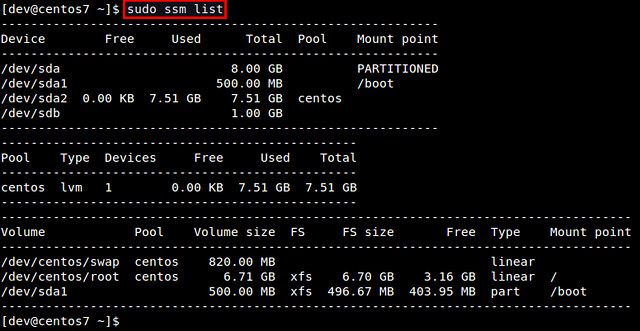
First, let's check information about available hard drives and LVM volumes. The following command will show information about existing disk storage devices, storage pools, LVM volumes and storage snapshots. The output is from fresh CentOS 7 installation which uses LVM and XFS file system by default.
$ sudo ssm list
In this example, there are two physical devices ("/dev/sda" and "/dev/sdb"), one storage pool ("centos"), and two LVM volumes ("/dev/centos/root" and "/dev/centos/swap") created in the pool.

Add a Physical Disk to an LVM Pool

Let's add a new physical disk (e.g., /dev/sdb) to an existing storage pool (e.g., centos). The command to add a new physical storage device to an existing pool is as follows.
$ sudo ssm add -p <pool-name> <device>
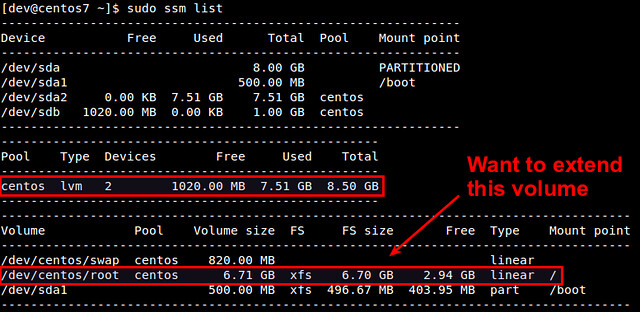
After a new device is added to a pool, the pool will automatically be enlarged by the size of the device. Check the size of the storage pool named centos as follows.
As you can see, the centos pool has been successfully expanded from 7.5GB to 8.5GB. At this point, however, disk volumes (e.g., /dev/centos/root and /dev/centos/swap) that exist in the pool are not utilizing the added space. For that, we need to expand existing LVM volumes.

Expand an LVM Volume

If you have extra space in a storage pool, you can enlarge existing disk volumes in the pool. For that, useresize option with ssm command.
$ sudo ssm resize -s [size] [volume]
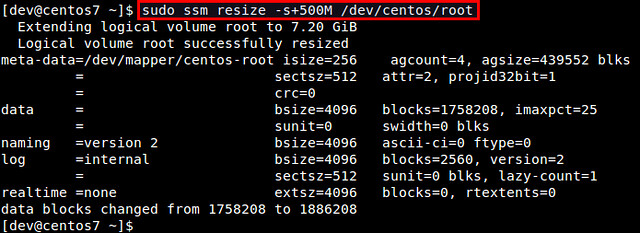
Let's increase the size of /dev/centos/root volume by 500MB.
$ sudo ssm resize -s+500M /dev/centos/root
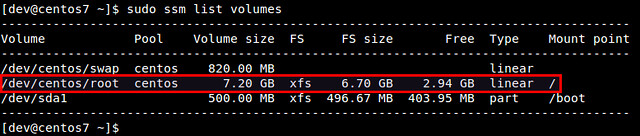
Verify the updated size of existing volumes.
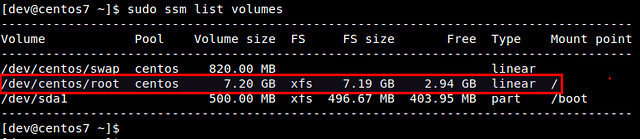
$ sudo ssm list volumes
We can confirm that the size of /dev/centos/root volume has increased from 6.7GB to 7.2GB. However, this does not mean that you can immediately utilize the extra space within the file system created inside the volume. You can see that the file system size ("FS size") still remains as 6.7GB.
To make the file system recognize the increased volume size, you need to "expand" an existing file system itself. Depending on which file system you are using, there are different tools to expand an existing filesystem. For example, use resize2fs for EXT2/EXT3/EXT4, xfs_growfs for XFS, btrfs for Btrfs, etc.
In this example, we are using CentOS 7, where XFS file system is created by default. Thus, we usexfs_growfs to expand an existing XFS file system.
After expanding an XFS file system, verify that file system fully occupies the entire disk volume 7.2GB.

Create a New LVM Pool/Volume

In this experiment, let's see how we can create a new storage pool and a new LVM volume on top of a physical disk drive. With traditional LVM tools, the entire procedure is quite involved; preparing partitions, creating physical volumes, volume groups, and logical volumes, and finally building a file system. However, with ssm, the entire procedure can be completed at one shot!
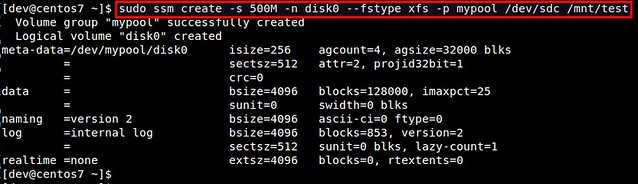
What the following command does is to create a storage pool named mypool, create a 500MB LVM volume named disk0 in the pool, format the volume with XFS file system, and mount it under /mnt/test. You can immediately see the power of ssm.
$ sudo ssm create -s 500M -n disk0 --fstype xfs -p mypool /dev/sdc /mnt/test
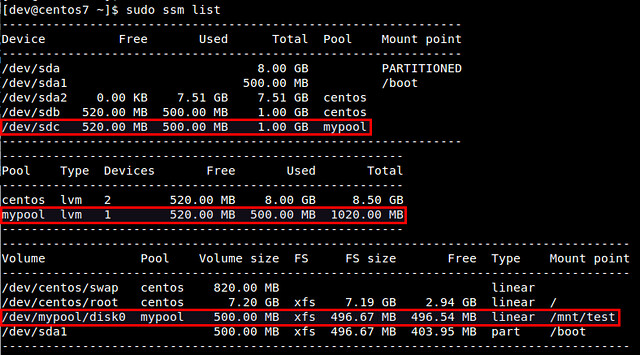
Let's verify the created disk volume.

Take a Snapshot of an LVM Volume

Using ssm tool, you can also take a snapshot of existing disk volumes. Note that snapshot works only if the back-end that the volumes belong to support snapshotting. The LVM backend supports online snapshotting, which means we do not have to take the volume being snapshotted offline. Also, since the LVM backend of ssm supports LVM2, the snapshots are read/write enabled.
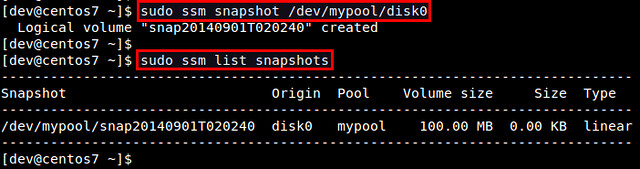
Let's take a snapshot of an existing LVM volume (e.g., /dev/mypool/disk0).
$ sudo ssm snapshot /dev/mypool/disk0
Once a snapshot is taken, it is stored as a special snapshot volume which stores all the data in the original volume at the time of snapshotting.
After a snapshot is stored, you can remove the original volume, and mount the snapshot volume to access the data in the snapshot.
Note that when you attempt to mount the snapshot volume while the original volume is mounted, you will get the following error message.
kernel: XFS (dm-3): Filesystem has duplicate UUID 27564026-faf7-46b2-9c2c-0eee80045b5b - can't mount

Remove an LVM Volume

Removing an existing disk volume or storage pool is as easy as creating one. If you attempt to remove a mounted volume, ssm will automatically unmount it first. No hassle there.
To remove an LVM volume:
$ sudo ssm remove <volume>
To remove a storage pool:
$ sudo ssm remove <pool-name>

webmin home page

http://www.webmin.com/rpm.html
wget http://prdownloads.sourceforge.net/webadmin/webmin-1.780-1.noarch.rpmthen install optional dependencies with :yum -y install perl perl-Net-SSLeay openssl perl-IO-Ttyand then run the command :rpm -U webmin-1.780-1.noarch.rpm

2016年1月7日 星期四

Cisco switch trunk to esxi port

http://kb.vmware.com/selfservice/microsites/search.do?language=en_US&cmd=displayKC&externalId=1006628

This is a Cisco Switch port TRUNK sample configuration.
 
Apply the following commands to Cisco Switch command line:
  • interface GigabitEthernet1/1
  • description VMware ESX - Trunk A - NIC 0 – Port Description
  • switchport trunk encapsulation dot1q – ESX only supports dot1q and not ISL
  • switchport trunk allowed vlan 100,200 – Allowed VLANs
  • switchport mode trunk – Enables Trunk
  • switchport nonegotiate – ESX/ESXi does not support DTP dynamic trunking protocol. When configuring trunk port, set it to nonegotiate.
  • spanning-tree portfast trunk – Enables PortFast on the interface when it is in trunk mode.


sample of ESX vSwitch configuration for VST mode:
  • esxcfg-vswitch [options] [vswitch[:ports]]
  • esxcfg-vswitch -v [VLANID] -p [port group name] [vswitch[:ports]]
  • esxcfg-vswitch -v 200 -p "Virtual Machine Network 2" vSwitch1